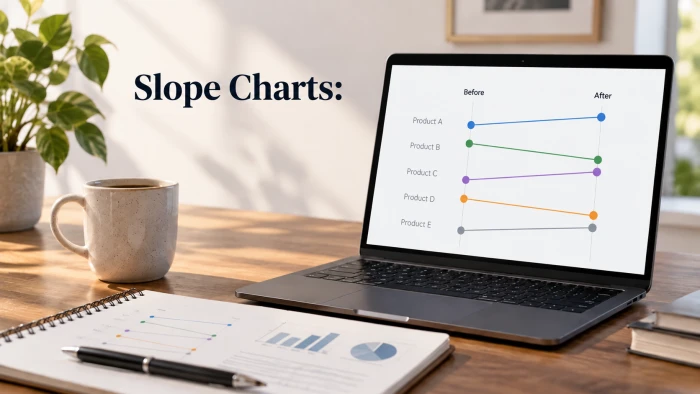
You can make a clean, presentation ready graph in your browser in under two minutes, with no Excel licence, no download, and no account. This guide walks through two free tools that do exactly that, with the sample data used for every chart so you can copy it and follow along.
Why skip Excel for a quick graph?
Excel is a spreadsheet first and a chart tool second. For a one off bar chart in a blog post, a slide, or a school assignment, it brings more friction than value.
• It costs money. Excel comes bundled with a Microsoft 365 subscription, and the free web version hides several chart options behind the desktop app.
• It takes time. Formatting a default Excel chart so it looks good in a deck means fighting axis settings, gridlines, and legends.
• It needs a file. You have to open a workbook, type data into cells, select a range, insert a chart, then export a screenshot.
An online chart maker flips that order. You paste the numbers, pick a type, and download an image. That is the whole job.
This guide is for anyone who needs a graph without the spreadsheet: bloggers, students, marketers, founders writing an investor update, teachers building a lesson, or anyone who just needs one chart and does not want to learn software to get it.
We tested two tools that run fully in the browser and cost nothing for ordinary use:
1. Chartle, a manual chart builder where you type values into a data panel and style every element yourself.
2. ChartGPT, an AI chart maker where you describe or paste your data and it draws the chart.
Each walkthrough below includes the exact data set used, the steps taken, and a space for the finished chart.
Before you start: two things that make any chart tool easier
Most bad charts are not the tool's fault. They come from messy data or the wrong chart type. Spend one minute on each before you open a chart maker.
1. Put your data in a simple two column shape
Every tool in this guide reads the same basic layout: one column of labels, one or more columns of numbers, and a header row. Keep it that simple.
| Good | Avoid |
|---|---|
| One header row with short names | Merged header cells |
| Numbers only in number columns | "$1,200" or "12%" typed as text |
| One row per category or date | A totals row at the bottom |
| Consistent date format | "Jan 2026" in one row and "01/02/26" in the next |
If your data lives in Google Sheets, select the range and copy it with Ctrl + C (or Cmd + C on a Mac), since Google's own copy and paste help page notes that most browsers block the right-click menu in Sheets. Both tools below accept a straight paste.
2. Pick the chart type that matches your question
The chart type depends on what you are trying to show, not on which one looks nicest.
| You want to show | Use | Example |
|---|---|---|
| Change over time | Line chart | Monthly website visitors |
| Values across a few categories | Bar chart | Sales by region |
| Two or three series side by side | Grouped bar chart | 2025 vs 2026 sales by region |
| Parts of one total | Pie or donut chart | Traffic by source |
| A ranking with long labels | Horizontal bar chart | Top 8 reasons customers cancel |
| Relationship between two numbers | Scatter chart | Ad spend vs leads |
Two rules that save you from the most common mistakes: use a pie chart only when the slices add up to 100 percent and there are six or fewer of them, and never start a bar chart's axis above zero.
Tool 1: Chartle (chartle.com), build the chart by hand with full control
Chartle is a hands on chart builder. There is no AI and no prompt. You pick a chart type from a File menu, type values into a data panel, and adjust colours, fonts, labels, gridlines, and annotations yourself. It is run by a small Dutch studio called Zygomatic and has been online for years.
What you get, all free (from the home page and FAQ, checked October 2026):
| Feature | Chartle |
|---|---|
| Cost | Free, no restrictions, no registration |
| Chart types | 10: bar, vertical bar, line, pie/donut, scatter, radar, polar, bubble, funnel, gauge |
| Monthly limit | None |
| Where your data goes | Nowhere. Everything runs in your browser and no data is sent to a server |
| Export | Save as image (PNG, with transparent background if you want it), plus an HD option for print |
| Save and reopen | File » Save stores a .chart file on your device that you can reopen and edit later |
| Extras | Stacked bars, stepped lines, area fill, manual axis ranges, text and shape annotations, CSV import |
The trade off is time. A chart takes two or three minutes here, because you are making every decision, where ChartGPT (Tool 2) generates one in about 20 seconds. In exchange you get exact colours and total control over the axis.
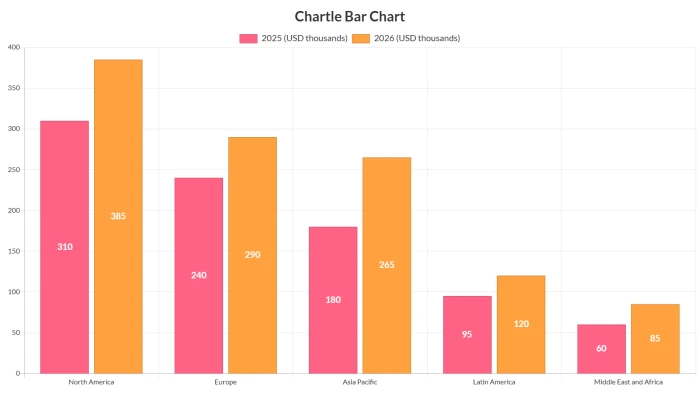
Walkthrough A: a grouped bar chart of sales by region, 2025 vs 2026
Sample data used. Annual revenue for a fictional online store, split by region, in thousands of US dollars. Two series means a grouped bar chart.
| Region | 2025 (USD thousands) | 2026 (USD thousands) |
|---|---|---|
| North America | 310 | 385 |
| Europe | 240 | 290 |
| Asia Pacific | 180 | 265 |
| Latin America | 95 | 120 |
| Middle East and Africa | 60 | 85 |
Steps
1. Open chartle.com. The editor loads on the home page. Dismiss the chart type strip if it is in the way.
2. Click File » New and choose Vertical bar.
3. In the data panel, replace the sample labels with the five regions and the sample values with the 2025 column.
4. Click Add dataset and enter the 2026 values. Name the two datasets "2025" and "2026" so the legend is correct.
5. Open Properties to set the title (we used "Revenue grew in every region in 2026"), pick one colour per year, and switch on data labels if you want the numbers on the bars.
6. In Grid properties, leave the Y axis minimum at 0. You can set it manually here, but for a bar chart it should stay at zero.
7. Use Annotate » Text to add a source line under the chart, for example "Source: internal sales data, USD thousands".
8. Click File » Save image as for a standard PNG, or Save image as HD if the chart is going into a printed report.
Result
Walkthrough B: a pie chart of survey responses
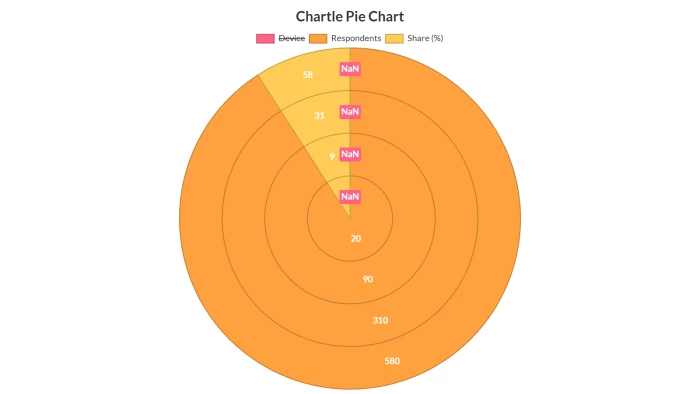
Sample data used. Answers to a one question survey, "Which device do you mostly use to read our blog?", from 1,000 fictional respondents. Four categories that sum to 100 percent, so a pie works.
| Device | Respondents | Share (%) |
|---|---|---|
| Mobile phone | 580 | 58 |
| Laptop or desktop | 310 | 31 |
| Tablet | 90 | 9 |
| Other | 20 | 2 |
Steps
1. File » New » Pie/Donut.
2. Type the four device labels and the four respondent counts into the data panel. Chartle calculates the slice sizes from the raw counts, so you do not need to enter percentages.
3. In Properties, choose whether you want a pie or a donut, and set the labels to show percentages.
4. Set a colour for each slice. If one slice is the point of the chart, give it a strong colour and keep the others muted.
5. Add the sample size as an annotation: "n = 1,000".
6. If you want a transparent background for a website, open Properties » Background color and move the transparency slider to the left. Save as PNG to keep the transparency.
7. File » Save keeps a .chart file on your computer so you can come back and change the numbers next quarter without rebuilding the chart.
Result
Tool 2: ChartGPT (chartgpt.co), describe the chart and get the chart
ChartGPT is the fastest route from numbers to a finished graph, and the one to use when you want the tool to make the design decisions for you. You paste a table or type a sentence, press Generate, and it draws a chart with sensible defaults already applied: bars start at zero, rankings are sorted, and labels are readable.
What the free plan gives you (from the pricing page, checked October 2026):
| Feature | Free plan |
|---|---|
| Charts per calendar month | 15 |
| Account or card needed | No |
| Chart types | All 9: bar, horizontal bar, grouped bar, stacked bar, line, area, pie, donut, scatter |
| Rows per paste | Up to 500 |
| Export formats | PNG, SVG, PDF, plus the chart spec as JSON |
| Data storage | None. The chart lives in your browser tab until you export it |
One honest limitation: colours and the axis range are chosen automatically and cannot be overridden yet. If you need brand colours, use Chartle (Tool 1) instead.
Walkthrough C: a line chart of monthly website visitors
Sample data used. This is the data set we pasted, formatted exactly as it was typed into the box. It shows a fictional blog's monthly visitors over a year.
| Month | Visitors |
|---|---|
| Jan 2026 | 4,200 |
| Feb 2026 | 4,650 |
| Mar 2026 | 5,100 |
| Apr 2026 | 5,900 |
| May 2026 | 6,300 |
| Jun 2026 | 6,100 |
| Jul 2026 | 7,400 |
| Aug 2026 | 8,200 |
| Sep 2026 | 9,050 |
| Oct 2026 | 9,800 |
| Nov 2026 | 11,200 |
| Dec 2026 | 12,600 |
Steps
1. Open chartgpt.co. The chart maker is on the home page. There is no sign up screen.
2. Copy the table above (or your own range from Google Sheets) and paste it into the box labelled "Describe the chart you want".
3. Below the pasted data, add one line that says what the chart is for. We typed: Line chart. Show that traffic tripled across 2026.
4. Press Generate chart (or Ctrl + Enter). The chart appears on the canvas in a few seconds. Because the first column is a date, ChartGPT picks a line chart on its own even if you leave out the chart type.
5. Check the title. Because we told it the purpose, the title states the finding (traffic tripled) instead of naming the columns.
6. Click PNG for a quick image, SVG if the chart is going into a slide, or PDF for print. The export buttons sit directly under the chart.
Result

Walkthrough D: a donut chart of traffic by source
Sample data used. Where the same fictional blog's December 2026 visitors came from. The shares add up to 100, which is the test for whether a pie or donut is the right choice.
| Source | Share of visitors (%) |
|---|---|
| Organic search | 46 |
| Social media | 22 |
| Direct | 15 |
| Email newsletter | 10 |
| Referral | 7 |
Steps
1. Paste the five rows into the box.
2. Type: Donut chart of traffic by source. Highlight organic search.
3. Press Generate chart. ChartGPT draws a donut with the total in the middle and, because you asked it to highlight one slice, colours organic search and greys out the rest.
4. If you want to try it as a plain bar chart instead, use the chart type switcher. Switching type redraws the same data instantly and does not count as a new generation against your 15 free charts.
5. Export as PNG.
Result

Tip for the free limit. Changing the chart type is free, but changing the title, sort order, or units means editing the prompt and generating again, which counts as one chart. Get your data and your sentence right before you press Generate and 15 charts a month goes a long way.
ChartGPT vs Chartle: which one should you open?
Use Chartle when you need exact colours, a custom axis, or more than 15 charts a month. Use ChartGPT when speed matters and the defaults are good enough.
| Chartle | ChartGPT | |
|---|---|---|
| How you enter data | Type values into a data panel, or import CSV | Paste a table or type a sentence |
| Who picks the chart type | You | The tool, unless you name one |
| Time to first chart | 2 to 3 minutes | About 20 seconds |
| Chart types | 10 | 9 |
| Free limit | Unlimited | 15 charts a month |
| Account needed | No | No |
| Export formats | PNG (standard or HD), .chart project file | PNG, SVG, PDF, JSON spec |
| Custom colours | Yes, per series and per slice | No, chosen automatically |
| Manual axis range | Yes | No |
| Annotations (text, arrows, shapes) | Yes | No |
| Where your data is processed | Never leaves your browser | Sent to an AI model to read, not stored afterwards |
| Best for | Branded charts, print, charts you will update later | Decks, quick blog charts, investor updates |
A practical combination: generate the first version in ChartGPT to see which chart type the data wants, then rebuild it in Chartle if you need brand colours or an annotation.
Seven habits that make a free chart look professional
The tool does not decide whether a chart is good. These habits do, and they cost nothing.
1. Write the finding in the title. "Traffic tripled in 2026" tells the reader what to see. "Visitors by month" makes them work it out.
2. Start bars at zero. A bar's length is the value. Cutting the axis at 4,000 turns a 10 percent difference into what looks like a 300 percent one.
3. One colour per series, grey for the rest. If the chart is about one bar or one slice, give only that one a strong colour.
4. Put units in the axis label or the title. "Revenue (USD thousands)" removes the question of whether 310 means dollars, thousands, or millions.
5. Sort categories by value unless the order has meaning. Months stay in calendar order. Regions, products, and survey answers should be sorted largest to smallest.
6. Keep pie charts to six slices or fewer. Beyond that, the small slices become unreadable. Combine the long tail into "Other" or switch to a horizontal bar chart.
7. Cite the source and the sample size on the chart itself. Charts get screenshotted and shared without the article around them. "Source: company survey, n = 1,000, Sept 2026" travels with the image.
Export sizes that work. For a blog post, a PNG around 1,200 pixels wide is sharp on most screens without being heavy. For a slide that will be projected, use SVG from ChartGPT or the HD image option from Chartle. For print, use PDF (ChartGPT) or HD PNG (Chartle).
Start with your data, not the tool
You do not need Excel to make a graph. You need a short, clean table and one sentence that says what the chart should show. With those two things ready, Chartle will give you a fully customised chart in a few minutes, and ChartGPT will give you a finished one in about 20 seconds, both for free and both without an account.
Copy any of the four data sets in this guide, open either tool, and make your first chart now. Then swap in your own numbers.