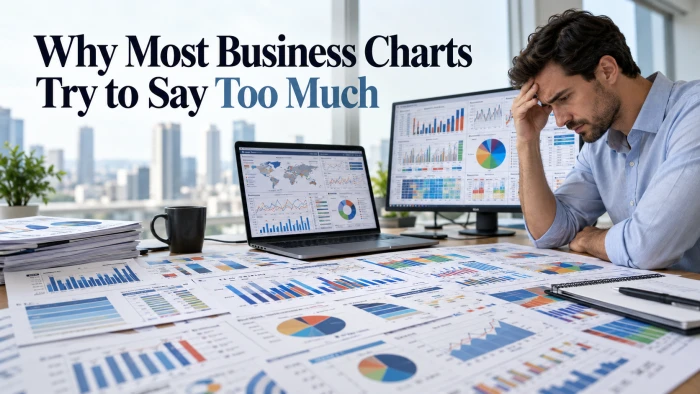
Making a chart used to mean picking a chart type, fighting with axis settings and exporting three times before the labels stopped overlapping. In 2026 you can describe the chart you want and have it in seconds. The real question is no longer whether an AI graph generator can draw a graph. It is which one fits the way you actually work.
The demand is not hype. McKinsey's 2025 State of AI survey found that 88 percent of organizations now use AI regularly in at least one business function, up from 78 percent a year earlier. Mordor Intelligence values the data visualization market at $10.92 billion in 2025 and expects it to reach $18.36 billion by 2030, a compound annual growth rate of 10.95 percent. And ChatGPT alone reached 900 million weekly active users in February 2026, which means a large share of the people making charts today are already asking an AI for help.
There is a catch. In the same McKinsey survey, inaccuracy was the most commonly reported negative consequence of AI use, named by 30 percent of respondents. A chart that looks polished but misreads one column is worse than no chart at all. So this guide does more than list features. Every tool gets the same sample dataset, a prompt you can copy and run, and an answer key so you can check whether the output is actually right.
88% of organizations use AI in at least one business function (McKinsey, 2025) | $18.36B projected data visualization market by 2030 (Mordor Intelligence) | 900M ChatGPT weekly active users, February 2026 (OpenAI) | 30% of respondents report problems with AI inaccuracy (McKinsey, 2025) |
The 7 best AI graph generators at a glance
If you only have a minute, this table gives you the short version. Prices are the cheapest paid tier in US dollars per month, checked in September and October 2026.
| # | Tool | Best for | Free option | Paid from |
|---|---|---|---|---|
| 1 | Julius AI | Deep analysis with charts | Daily credits | $20/mo |
| 2 | ChatGPT | Charts inside a bigger task | Yes, limited | $8/mo (Go) |
| 3 | Microsoft Copilot in Excel | Teams that live in Excel | No | $9.99/mo (Microsoft 365 Personal) |
| 4 | Gemini in Google Sheets | Google Workspace teams | Limited | $19.99/mo (Google AI Pro) |
| 5 | ChartGPT (chartgpt.co) | Deck-ready charts from one sentence | 15 charts/mo, no sign-up | $14.99/mo |
| 6 | Graphy | Interactive, shareable charts | 5 charts | $16/user/mo |
| 7 | Canva (Magic Charts) | On-brand charts in designs | Yes | $18/mo (Pro) |
How we chose these tools
An AI graph generator is any tool that takes data or a description and produces a chart for you, using AI to pick the chart type, transform the data or write the code. That covers everything from chatbots to spreadsheet assistants to dedicated chart makers, so we scored each candidate on five things that matter in daily use:
1. Input flexibility. Can it take a pasted table, a file, a plain sentence or a live data connection?
2. Chart quality by default. Does it start bar charts at zero, label axes clearly and pick a sensible chart type without being told?
3. Export and reuse. Can you get PNG, SVG or PDF files, native editable charts or embeddable links?
4. Price transparency and free access. Can you try it without a sales call, and is the paid tier published?
5. Data handling. What does the vendor say about storing your data and using it to train models?
Pricing comes from vendor pricing pages and recent independent reviews. Plans in this category change often, so confirm the current price on each vendor's site before you buy.
The test dataset (and the answer key)
To make the comparison fair, every example in this article uses the same small dataset: monthly 2025 revenue for Brightleaf Tea Co., a fictional online tea shop, split across three sales channels. Values are in thousands of US dollars. Copy it below, or save it as brightleaf_2025.csv for tools that need a file upload.
brightleaf_2025.csv Month,Website,Amazon,Wholesale Jan,42,31,18 Feb,39,29,20 Mar,45,33,22 Apr,48,35,21 May,52,38,24 Jun,50,41,26 Jul,47,44,25 Aug,49,46,27 Sep,55,45,30 Oct,61,48,32 Nov,74,59,35 Dec,88,66,38 |
| Answer key: use this to check every output | |
| Total 2025 revenue | $1,483K |
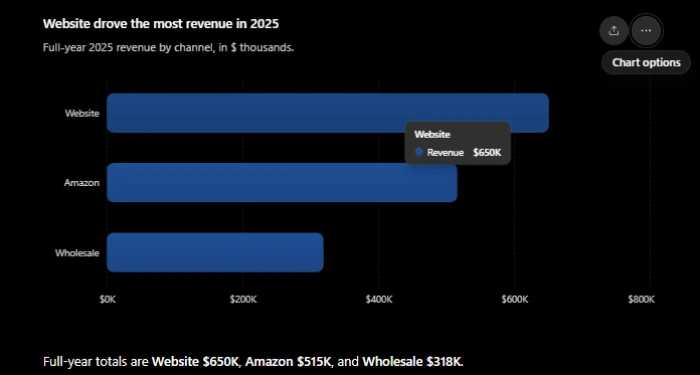
| Website (full year) | $650K, 43.8% of total |
| Amazon (full year) | $515K, 34.7% of total |
| Wholesale (full year) | $318K, 21.4% of total |
| Best month | December, $192K |
| Largest month-over-month jump | November, up 19.1% on October |
| Fastest-growing channel, Jan to Dec | Amazon, up 112.9% (Wholesale 111.1%, Website 109.5%) |
| Quarterly totals | Q1 $279K, Q2 $335K, Q3 $368K, Q4 $501K |
| Q4 share of the year | 33.8% |
| Biggest contributor to Q3 to Q4 growth | Website, up $72K (Amazon +$38K, Wholesale +$23K) |
The fastest-growing-channel question is deliberately close. All three channels roughly doubled, so a tool that answers confidently without showing the percentages deserves a second look.
Julius AIBest overall for turning raw data into analysis and charts |
Julius is an AI data analyst built specifically for spreadsheets and datasets. You upload a CSV, Excel file or Google Sheet, ask a question in plain English, and Julius writes and runs Python behind the scenes to clean the data, crunch the numbers and draw the chart. Because the code is visible, you can see exactly how each chart was produced, which matters the moment someone asks where a number came from.
It takes the top spot because it joins two jobs most chart tools keep apart: real analysis (grouping, statistics, growth rates, simple forecasts) and finished visuals. You can ask for a chart, ask a follow-up about the outlier in that chart, then ask for a cleaner version for a slide, all in one thread. On paid plans, charts are unlimited, so iteration is cheap.
| Best for | Analysts, researchers and students who need statistics behind their charts |
| Works from | CSV, Excel and Google Sheets files, plus database connections such as Postgres, BigQuery and Snowflake on paid plans |
| Free plan | Yes, with free daily credits and lighter models |
| Paid plans | Plus $20/month ($16 billed annually, 2,000 credits); Pro $45/month ($37 annually, 5,000 credits); Business $450/month |
| Worth knowing | Julius moved from message limits to credits and says the change made it up to 7 times more capable on complex multi-step tasks. Students get a 50% discount. |
Strengths• Shows the code behind every chart, so results are auditable • Handles multi-step work (filter, group, calculate, then plot) in one request • Unlimited charts and exports on paid plans | Watch-outs• Code-heavy tasks burn credits faster than simple questions • The free tier is best treated as a trial • Plan names and prices have changed several times, so check the current page |
Try it: Julius AI example
Upload brightleaf_2025.csv to a new Julius chat, then paste this prompt:
Prompt for Julius AI Using brightleaf_2025.csv (monthly 2025 revenue in $ thousands by channel): 1. Create a stacked area chart of monthly revenue by channel. 2. Create a second chart showing month-over-month growth (%) of total revenue. 3. Tell me which month had the largest month-over-month jump and by how much. 4. Use clear axis labels, a title that states the main finding, and export both charts as PNG. |
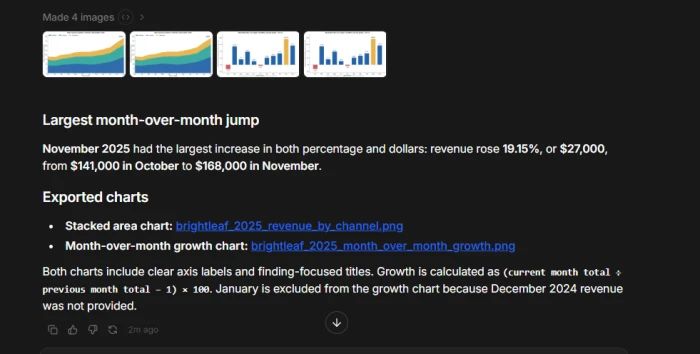 |
What to check: the growth chart should peak in November at 19.1%, and December total revenue should read $192K.
ChatGPTBest for charts that are one step in a bigger task |
ChatGPT is not sold as a graph generator, but its built-in data analysis reads an uploaded file or a pasted table, writes Python, and returns a chart in the same conversation.
Reach is its first advantage. OpenAI reported 900 million weekly active users in February 2026, along with 50 million paying subscribers, so it is the AI tool most people already have open in a browser tab.
Its second advantage is context. The chart is rarely the end goal: you usually need the paragraph that explains it, the email to your manager, or the summary slide that goes with it. ChatGPT can do all of that in one place, and because it uses Python, it can draw almost any chart type you can describe, from a simple bar chart to a heatmap.
| Best for | Everyday users who want a chart plus an explanation |
| Works from | Pasted tables, CSV and Excel uploads, PDFs containing tables, and images of existing charts |
| Exports | PNG downloads, the underlying Python code, and transformed data as CSV |
| Free plan | Yes, with data analysis available under tighter limits |
| Paid plans | Go $8/month; Plus $20/month; Pro $100 or $200/month |
Strengths• Can draw nearly any chart Python can draw • Excellent at explaining what a chart shows in plain language • Easy to refine through conversation | Watch-outs• Default styling can look plain unless you specify colors, fonts and labels • Each chart is generated from fresh code, so styling can drift between charts in the same deck • Free and Go plans have tighter limits on data analysis |
Try it: ChatGPT example
Open a new chat and paste this prompt, dataset included:
Prompt for ChatGPT Here is monthly 2025 revenue for Brightleaf Tea Co. in $ thousands:
Month,Website,Amazon,Wholesale Jan,42,31,18 Feb,39,29,20 Mar,45,33,22 Apr,48,35,21 May,52,38,24 Jun,50,41,26 Jul,47,44,25 Aug,49,46,27 Sep,55,45,30 Oct,61,48,32 Nov,74,59,35 Dec,88,66,38 Make a grouped bar chart comparing quarterly revenue (Q1 to Q4) for each channel. Put quarters on the x-axis, start the y-axis at zero, label each bar with its value, and use one consistent color per channel. Then give me a PNG download and a two-sentence summary of what changed in Q4. |
 |
Key differences Julius AI vs ChatGPT: specialist or generalist?Both tools write and run Python to make charts, and both start at $20 a month for their popular individual tier. The difference is focus. Julius is built around data from the ground up, while ChatGPT treats data analysis as one feature of a general assistant.
A simple rule: if you would otherwise open a Jupyter notebook, open Julius. If you would otherwise open a blank document, open ChatGPT. |
Microsoft Copilot in ExcelBest for teams whose numbers already live in Excel |
If your data is already in Excel, Copilot is the shortest path from numbers to chart. Select a table, open the Copilot pane, describe what you want, and it builds a native Excel chart, PivotTable or formula that you can format, resize and paste into PowerPoint like any other.
Native output is the quiet advantage here. There is no image to re-import and nothing to rebuild next month. The chart stays linked to the cells, so when new numbers arrive, the chart updates with them. For finance and operations teams who send the same report every month, that alone saves hours.
| Best for | Organizations standardized on Microsoft 365 |
| Works from | Excel tables and ranges |
| Output | Native, editable Excel charts, PivotTables and formulas |
| Pricing | Included with Microsoft 365 Personal ($9.99/month or $99.99/year), Family ($12.99/month) and Premium ($19.99/month). Businesses add Microsoft 365 Copilot, listed at $30 per user per month on enterprise plans. |
| Benchmark | Copilot in Excel (Agent Mode) is listed at 57.2% on the full SpreadsheetBench leaderboard of real-world spreadsheet tasks |
Strengths• Charts stay live and editable inside your workbook • No new tool to learn or approve for most companies • Also writes formulas and builds PivotTables | Watch-outs• The file must be saved to OneDrive or SharePoint with AutoSave turned on • Works best when data is formatted as a table (Ctrl+T) • Consumer plans include a monthly AI credit allowance |
Try it: Copilot in Excel example
1. Paste the Brightleaf dataset into a new workbook, starting at cell A1.
2. Select the data and press Ctrl+T to format it as a table.
3. Save the workbook to OneDrive so AutoSave is on.
4. Open Copilot from the Home tab and paste this prompt:
Prompt for Copilot in Excel Add a Total column that sums Website, Amazon and Wholesale for each month. Then create a line chart of monthly revenue by channel, with Total shown as a thicker line. Finally, tell me which channel grew the most in percentage terms from January to December, and show the percentage for each channel. |
Gemini in Google SheetsBest for Google Workspace teams and the current benchmark leader |
Google's April 22, 2026 update turned Gemini in Sheets from a formula helper into something closer to a spreadsheet builder. You can ask it to add scorecards and charts above your data or build a whole dashboard from a description. Gemini drafts a plan, asks you to approve it, then builds the formatted result using native Sheets tools such as tables, pivot tables, charts and formulas.
The numbers back it up. Google reports a 70.48% success rate on the full SpreadsheetBench dataset, a public benchmark built from 912 real questions posted on online Excel forums, and says that is close to human expert ability. On the third-party leaderboard it ranks first, ahead of Copilot in Excel Agent Mode at 57.2% and ChatGPT Agent working with .xlsx files at 45.5%. In June 2026 Google also extended full support to 28 more languages, so teams can prompt in their native language.
| Best for | Teams already working in Google Workspace |
| Works from | Native Google Sheets data, with the ability to pull context from Gmail and Drive |
| Output | Native Sheets charts, tables, pivot tables and full dashboards |
| Pricing | Included in Google Workspace plans with Gemini; consumers get it with Google AI Pro ($19.99/month) or AI Ultra. Higher usage limits need AI add-on licenses for Workspace. |
| Benchmark | 70.48% on full SpreadsheetBench, the top published score |
Strengths• Highest published accuracy on real spreadsheet tasks • Plans before it builds, so you can approve the approach • Native charts that live inside the shared sheet | Watch-outs• Works best with native Google Sheets files, so convert .xlsx first • A 70% success rate still means roughly three tasks in ten can go wrong • Free Google accounts do not get the full agent experience |
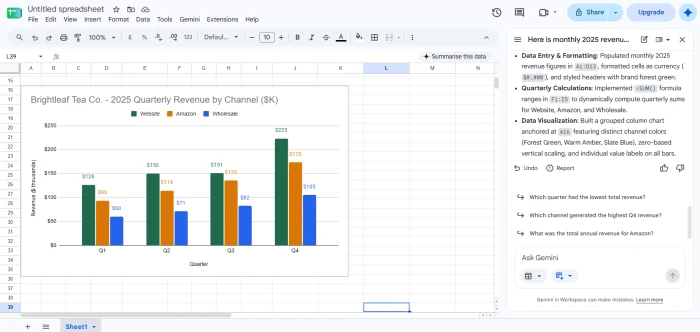
Try it: Gemini in Sheets example
1. Paste the Brightleaf dataset into a new Google Sheet, starting at cell A1.
2. Leave a few empty rows above it, or ask Gemini to insert them.
3. Open the Gemini side panel and paste this prompt:
Prompt for Gemini in Sheets Above this data, build a small summary dashboard with three scorecards: total 2025 revenue, best month, and top channel by full-year revenue. Add a pie chart showing each channel's share of full-year revenue, with channel names as labels and percentages shown on the slices. |
 |
Key differences Copilot in Excel vs Gemini in SheetsBoth assistants live inside the spreadsheet, both produce native editable charts, and both cost about the same as a streaming subscription for individuals. On the one public benchmark that compares them directly, Gemini leads by more than 13 points.
In practice, the right answer is usually whichever suite your files already live in. Moving a team's spreadsheets across ecosystems costs far more than any benchmark gap. |

ChartGPT (chartgpt.co)Best for fast, presentation-ready charts from a sentence or a pasted table |
ChartGPT does one thing and does it cleanly: you paste a table or write a sentence with numbers in it, and it returns a chart you can drop straight into a deck. There is no spreadsheet to learn and no dashboard to configure. The whole product is one input box and one canvas, and the company describes the process as three steps that take about twenty seconds.
What earns it a place on this list is its opinionated defaults. Bars always start at zero, rankings come sorted, one series gets one color, and when you want to point at a single bar, everything else turns grey. Tell it what the chart is for and the title states the finding (for example "Q4 was the strongest quarter of the year") instead of just naming the variables. If a column is ambiguous or a total does not add up, it asks rather than guessing. ChartGPT uses OpenAI models only to read your prompt and turn it into a structured chart specification. The drawing itself is ChartGPT's own code, which is why charts from four different spreadsheets still come out looking like one deck.
| Best for | Consultants, founders, marketers and students who need deck-ready charts quickly |
| Works from | Tables pasted from Excel, Google Sheets or a CSV, an uploaded CSV, or plain sentences. Up to 500 rows per paste on every plan, and it copes with messy pastes such as merged headers, stray totals rows and numbers stored as text. |
| Chart types | 9: bar, horizontal bar, line, area, pie, donut, stacked bar, grouped bar and scatter |
| Exports | PNG at twice the resolution, SVG, PDF, and the chart specification as JSON, on every plan and without an account |
| Free plan | 15 charts a month with no account and no card, including all nine chart types |
| Paid plans | Pro $14.99/month for 100 charts (14-day trial); Team $49.99/month for 5 seats, then $9 per seat, with unlimited charts within fair use and 10,000 API calls a month. Pro is half price for students and registered non-profits. |
| Data handling | Prompts and data are not stored after the chart is built and are not used to train models |
Strengths• Fastest route from a pasted range to a slide-ready file • Consistent palette, so every chart in a deck matches • SVG export stays sharp on a projector; no sign-up needed to try | Watch-outs• Colors and axis ranges are chosen automatically and cannot be overridden yet • No chart history, so export before you close the tab • Nine chart types cover most business needs, but not maps or heatmaps |
Try it: ChartGPT example
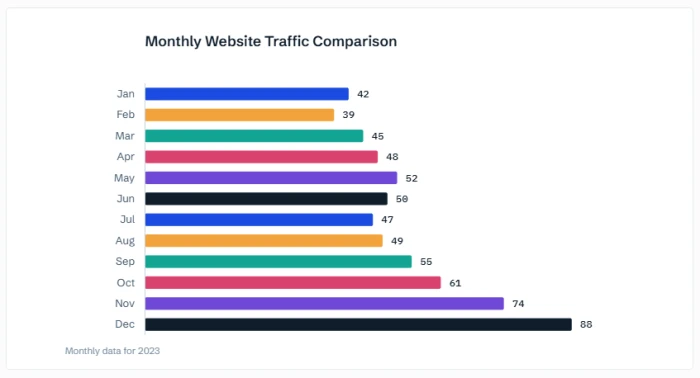
Go to chartgpt.co, paste this prompt into the box and press Generate chart:
Data for ChartGPT Here is Brightleaf Tea Co.'s monthly revenue for 2025, in $ thousands: Month,Website,Amazon,Wholesale Jan,42,31,18 Feb,39,29,20 Mar,45,33,22 Apr,48,35,21 May,52,38,24 Jun,50,41,26 Jul,47,44,25 Aug,49,46,27 Sep,55,45,30 Oct,61,48,32 Nov,74,59,35 Dec,88,66,38 |
 |
Key differences ChartGPT vs ChatGPT: one letter, two different jobsThe names are one letter apart, so people mix them up constantly. They solve different problems. ChatGPT is a general assistant that writes fresh Python for each chart. ChartGPT is a single-purpose chart maker that converts your request into a structured chart specification and draws it with the same rendering code every time.
Many people end up using both: ChatGPT to explore the data and find the story, then ChartGPT to produce the final, consistent charts for the deck. |
GraphyBest for interactive charts you share by link or embed |
Graphy sits between a quick chart maker and a presentation tool. You type or paste values, upload a CSV or Excel file, connect a Google Sheet or an API, or even ask its AI to search for data, and it produces interactive charts you can share with a link or embed in tools like Notion.
Interactivity is the point. Graphy charts are live objects with hover states, AI-written insights and annotations, which makes them better suited to async updates, investor notes and team boards than a static image pasted into a document. For developers, Graphy also offers a React chart SDK so the same editable charts can be built into other products.
| Best for | Startup, product and marketing teams sharing charts in docs and updates |
| Works from | Pasted or typed values, CSV, Excel, Google Sheets, API, or AI data search |
| Output | Interactive charts and boards, share links, embeds and image exports |
| Free plan | 5 charts with limited AI use and Graphy branding |
| Paid plans | Plus at $16 per user per month with unlimited charts and AI features and no Graphy logo; a higher Business tier is priced on request |
Strengths• Polished interactive charts with very little effort • AI insights and annotations explain the chart for you • Easy embedding in Notion and similar tools | Watch-outs• The free plan stops at five charts • Not designed for heavy statistical analysis |
Try it: Graphy example
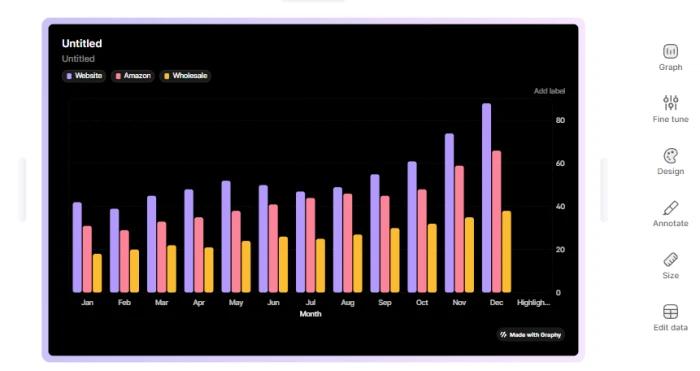
Create a new chart in Graphy, choose the AI option, and paste this prompt:
Prompt for Graphy Create an interactive stacked bar chart of Brightleaf Tea Co.'s 2025 monthly revenue by channel, using this data in $ thousands: Month,Website,Amazon,Wholesale Jan,42,31,18 Feb,39,29,20 Mar,45,33,22 Apr,48,35,21 May,52,38,24 Jun,50,41,26 Jul,47,44,25 Aug,49,46,27 Sep,55,45,30 Oct,61,48,32 Nov,74,59,35 Dec,88,66,38 Highlight November and December, add an insight annotation explaining the Q4 spike, and use a clean light theme. |
 |
Canva (Magic Charts in Canva Sheets)Best for on-brand charts inside social posts, reports and decks |
Canva is where many charts end up anyway: in social posts, one-pagers, reports and pitch decks. It now has 265 million monthly active users and $4 billion in annual recurring revenue, making it by far the largest design platform on this list. Canva Sheets brings AI charting straight into that workflow.
In Canva Sheets, select your data and choose Magic Charts, and Canva recommends a chart from a library of more than 25 chart types, then drops it into your design. Magic Insights answers questions about the data and returns charts and summaries, and Data Connectors can pull live numbers from sources such as Google Analytics and HubSpot. The result inherits your fonts, colors and brand kit, which is something pure chart tools cannot do.
| Best for | Marketers, educators and social media teams |
| Works from | Canva Sheets, pasted data and live data connectors |
| Output | Charts inside any Canva design, exported as PNG, PDF and other design formats |
| Pricing | Free plan available; Pro is listed at $18/month in the US with monthly billing (less on annual billing); Business is $25 per person per month. AI features draw from a usage allowance. |
Strengths• Charts match your brand and sit inside finished designs • Huge template library for social and print formats • Charts stay linked to the sheet within the same Canva file | Watch-outs• AI allowances are shared across all Canva AI features • Analysis depth is limited compared with Julius or ChatGPT • Check that charts update as expected when moved into a separate design |
Try it: Canva example
1. Create a new Canva Sheet and paste the Brightleaf dataset.
2. Select all the cells, open Actions and choose Magic Charts. Pick the stacked or grouped bar suggestion.
3. Open Magic Insights and paste this question:
Prompt for Canva Magic Insights Which channel contributed the most to revenue growth from Q3 to Q4? Show the increase for each channel in $ thousands as a chart. |
 |
What these AI graph generators cost
Every tool on this list has an entry paid tier at or under $20 a month, so price is rarely the deciding factor. The bigger cost differences show up when you add seats for a team or need higher usage limits.
Cheapest paid plan, US dollars per monthList prices with monthly billing where offered, checked September and October 2026. 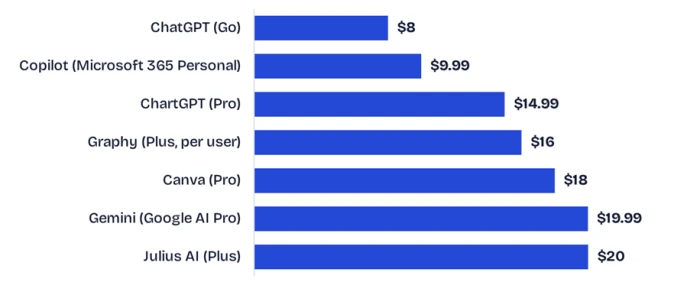 Graphy is priced per user. Copilot and Gemini prices are the consumer bundles that include the assistant; business plans differ. Most tools also offer a free tier, listed in the table below. |
All 7 tools side by side
The biggest difference between these tools is not price. It is what they start from and what they hand back. Some work from your files, some from your spreadsheet, some from a sentence, and the output ranges from a PNG to a live, embeddable chart.
| Tool | Type | Works from | Gives you | Free option | Paid from |
|---|---|---|---|---|---|
| Julius AI | AI data analyst | Files, databases | Charts, code, reports | Daily credits | $20/mo |
| ChatGPT | General AI assistant | Pasted data, files | PNG, code, CSV | Yes, limited | $8/mo |
| Copilot in Excel | Spreadsheet assistant | Excel tables | Native Excel charts | No | $9.99/mo |
| Gemini in Sheets | Spreadsheet assistant | Sheets, Gmail, Drive | Native Sheets charts, dashboards | Limited | $19.99/mo |
| ChartGPT | Text-to-chart maker | Pasted tables, CSV, sentences | PNG, SVG, PDF, JSON | 15 charts/mo, no sign-up | $14.99/mo |
| Graphy | Interactive chart maker | Paste, CSV, Excel, Sheets, API | Links, embeds, images | 5 charts | $16/user/mo |
| Canva | Design platform | Canva Sheets, connectors | Charts in designs, PNG, PDF | Yes | $18/mo |
Which AI graph generator should you choose?
Start from your situation, not the feature list. Most people only need one or two of these seven tools.
| If you need to | Start with |
|---|---|
| Make a clean chart for a slide in the next five minutes | ChartGPT |
| Understand the data before you chart it | Julius AI |
| Chart something and write about it in the same place | ChatGPT |
| Keep charts live inside an Excel workbook | Copilot in Excel |
| Build a dashboard inside a shared Google Sheet | Gemini in Sheets |
| Share an interactive chart by link or embed | Graphy |
| Put a chart into a branded social post or report | Canva |
How to check an AI-generated chart before you publish it
With 30 percent of McKinsey's respondents reporting problems with AI inaccuracy, and the best spreadsheet agent still missing about three tasks in ten on SpreadsheetBench, a quick review is not optional. These six checks take two minutes and catch most errors:
1. Check one total against the source. If the chart's total does not match your own sum (for the test dataset, $1,483K), stop and find out why.
2. Check the baseline. Bar charts should start at zero. A truncated axis can make a 5 percent change look like a 50 percent one, and studies show viewers still overestimate the gap even after being told the axis is cut.
3. Check units and labels. Thousands versus millions and percent versus percentage points are the most common silent mistakes.
4. Check sort order and colors. Rankings should be sorted, and each series should keep the same color across every chart.
5. Ask the tool to show its work. Julius and ChatGPT can show their code, and Gemini shows its analysis steps. Use that.
6. Run the prompt twice. If two runs of the same prompt give different numbers, trust neither until you know which is right.
The bottom line
There is no single best AI graph generator, only the best one for the job in front of you. Julius AI is the strongest all-rounder for analysis-driven charts. ChatGPT is the most convenient if the chart is part of a bigger task. Copilot and Gemini win when your data already lives in a spreadsheet, and Gemini currently leads on published accuracy. ChartGPT is the fastest way to get clean, consistent charts into a deck. Graphy and Canva round out the list for interactive, shareable charts and branded designs.
The quickest way to decide is to test. Copy the Brightleaf dataset above, pick the two tools that best match your situation, and run the same prompt in both. Ten minutes of side-by-side results, checked against the answer key, will tell you more than any review.